

Signing in
Open your console’s address and sign in with your console account. If you forget your password, use Reset here under the sign-in form to get a reset link by email.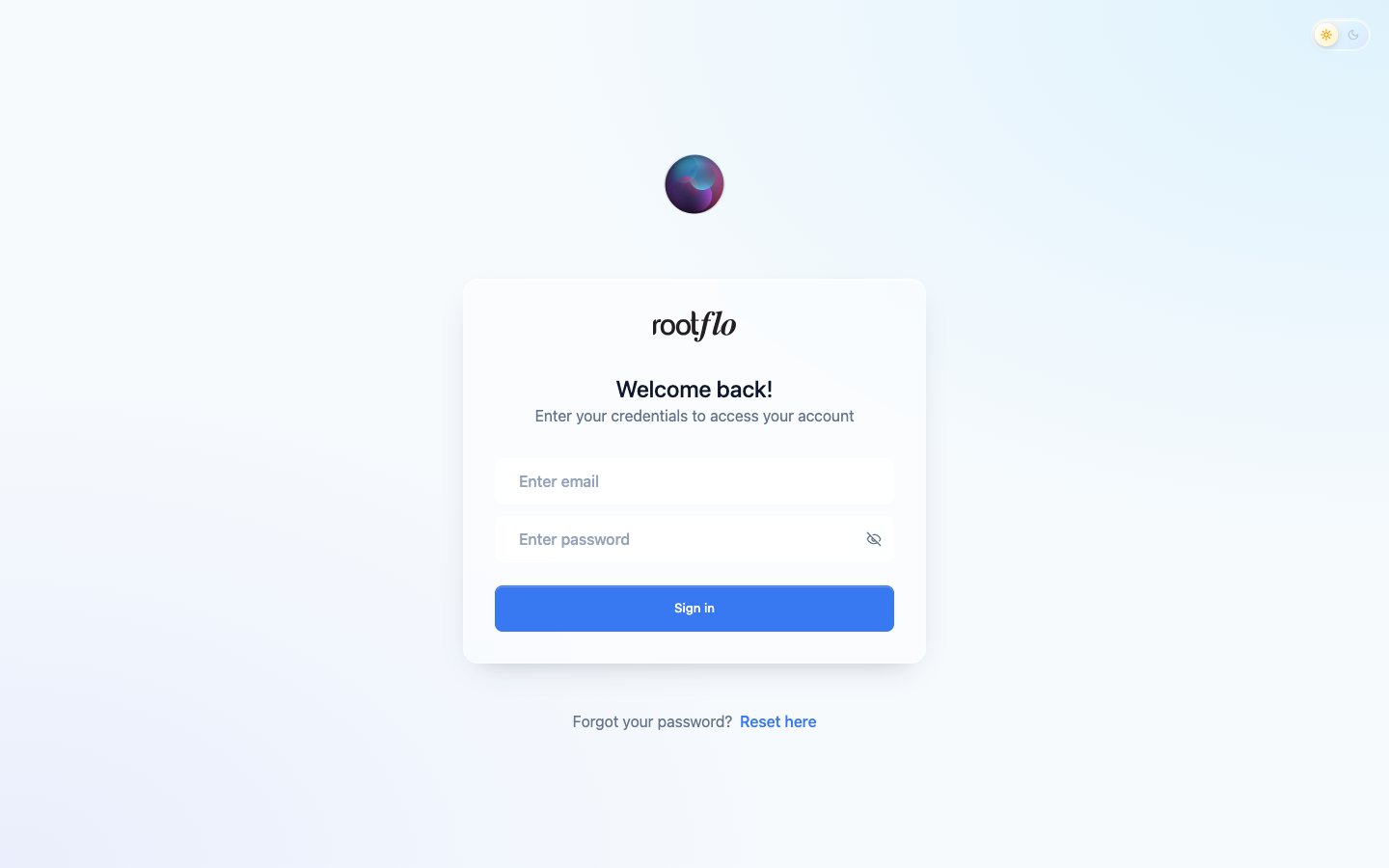
The app list
After signing in you see every app this console manages, with its status.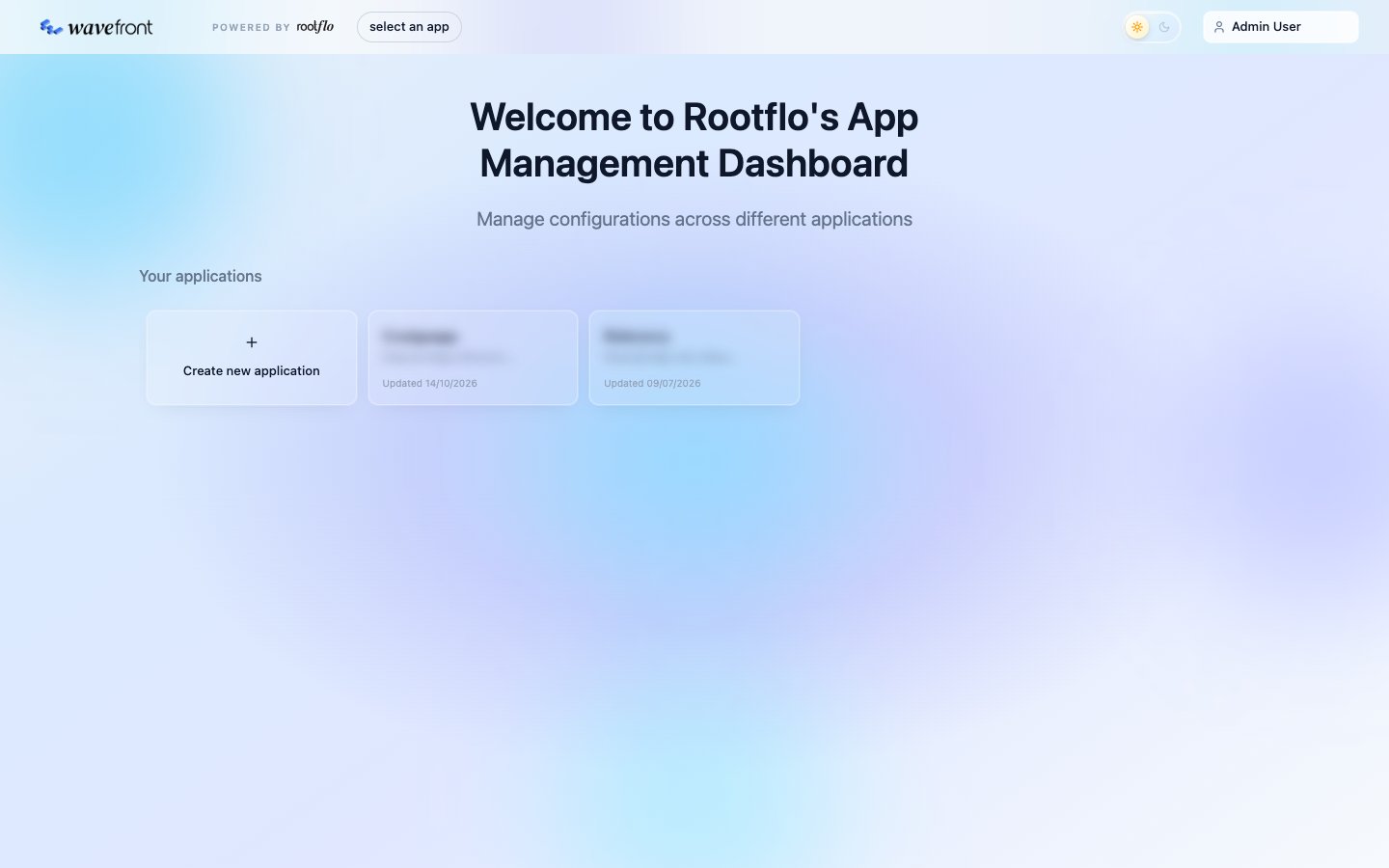
- open an app to work inside it;
- add an app (see below);
- edit an app’s name or URLs;
- manage console users (who can sign in to this console).
Adding an app
An app is a Wavefront backend that is already running (see Operations for how to deploy one). To manage it from the console, register it:
The console and the app share a secret, configured when the app is deployed. The console uses it to create a short-lived credential for each request, so the app trusts the console without you signing in to the app.
Inside an app
Opening an app shows its sidebar. Each entry is one building block: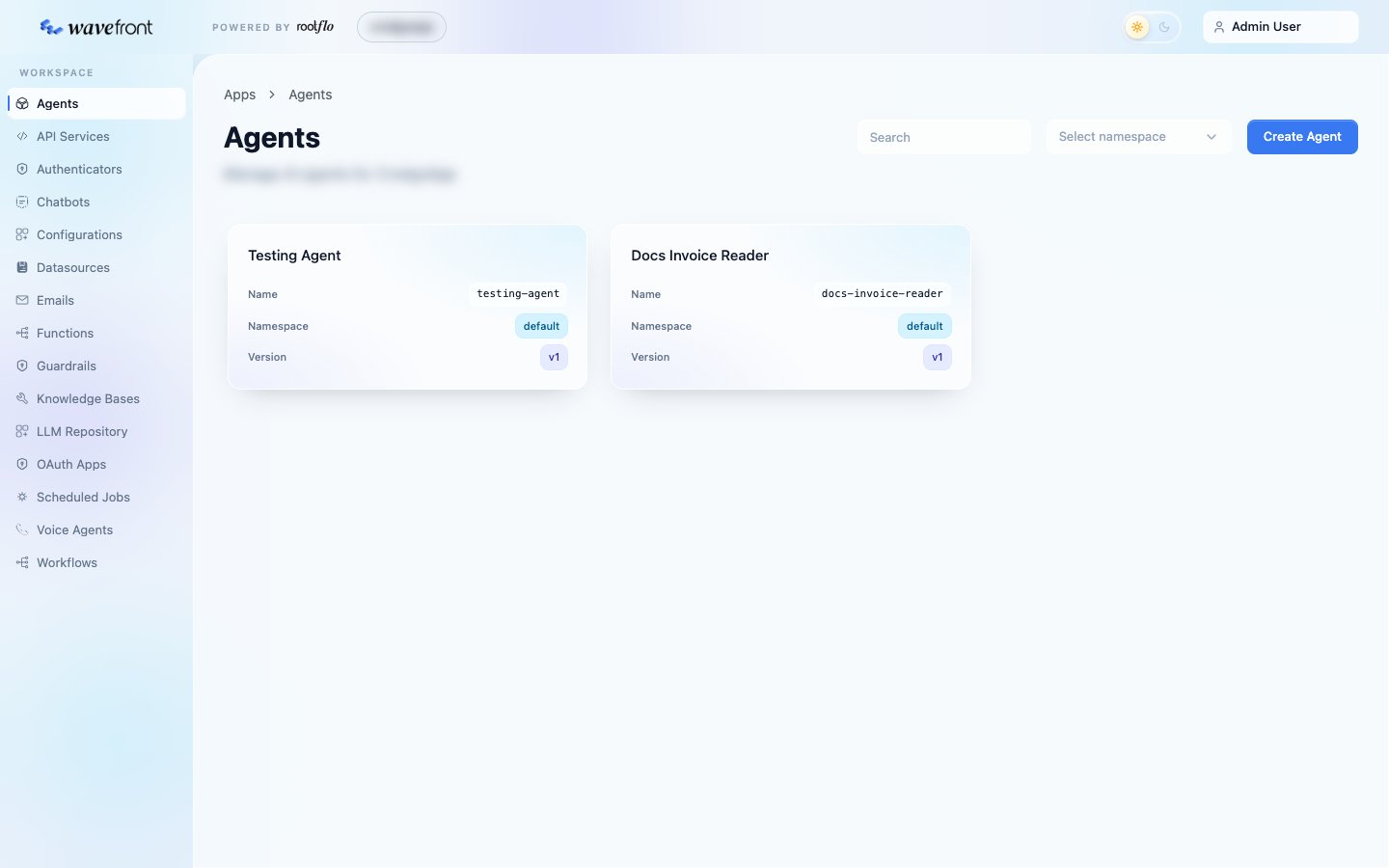
Some sections appear only when the feature is enabled for your deployment.
Testing as you build
You can test most building blocks without writing any code:- Agents have a chat panel. Type in the Ask anything box and send. The + button next to it lets you Select Images, Select Documents or Add variables (as JSON). Above the conversation you can turn Stream on to see the reply as it is generated, and pick which version to test; below it you can try a different model from the LLM Repository without changing the agent.
- Workflows show their YAML on the left and the same chat panel on the right, with a JSON output toggle to pretty-print the result. Variables go in through + → Add variables.
- Functions can be run on a sample input.
- Dynamic queries can be run with parameters.